🧭 Overview
The Incident Report system records accidents, injuries, or other notable events that occur within the venue. Each report captures detailed information about the people involved, the nature of any injuries, and a summary of what happened.
Reports can be created, viewed, printed, and archived for compliance and internal review.
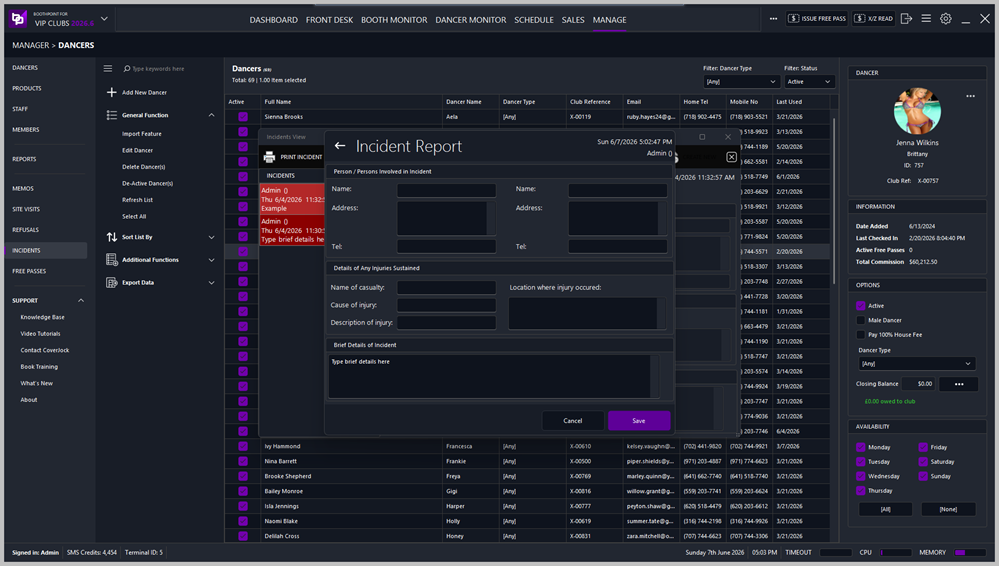
📝 Creating an Incident Report
-
Open Incidents View from the left‑hand menu or the Manager > Dancers section.
-
Click Create New to open a blank form.
-
Complete the following sections:
Person / Persons Involved in Incident
-
Name – enter the full name of each person involved.
-
Address – record the person’s address.
-
Telephone – include a contact number. (Two columns allow entry for multiple individuals.)
Details of Any Injuries Sustained
-
Name of Casualty – who was injured.
-
Description of Injury – describe the injury clearly.
-
Cause of Injury – explain how it occurred.
-
Location Where Injury Occurred – specify where the incident took place.
Brief Details of Incident
-
Press Save to store the report, or Cancel to discard changes.
📂 Viewing and Managing Reports
-
Access existing reports via Incidents View.
-
The left panel lists all recorded incidents with:
-
Staff Name
-
Date and Time
-
Brief Details
-
Selecting a record displays full details on the right.
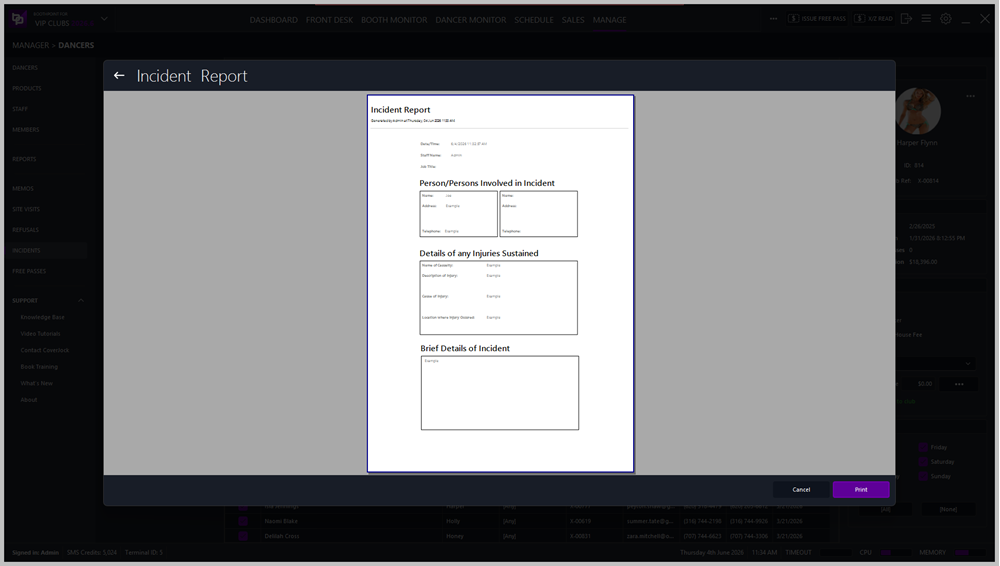
🖨️ Printing Options
At the top of the Incidents View screen:
⚙️ Report Fields
| Field |
Description |
| Staff Name |
Person who created the report. |
| Job Title |
Role of the reporting staff member. |
| Date / Time |
Automatically recorded when the report is created. |
| Persons Involved |
Names, addresses, and contact details. |
| Injury Details |
Description, cause, and location of injury. |
| Brief Details |
Summary of the incident. |
|

|
Tip
-
Always complete all fields for accurate record‑keeping.
-
Use clear, factual language — avoid speculation.
-
Print and file reports for compliance or insurance purposes.
-
Reports can be reviewed later for safety audits or staff training.
|
|