|
The Back Office is the administrative control center of BoothPoint. It provides management access to all system modules, including booth monitoring, dancer management, scheduling, sales, and configuration settings.
This area is used by club administrators and supervisors to oversee operations, configure system preferences, and perform end‑of‑day routines.
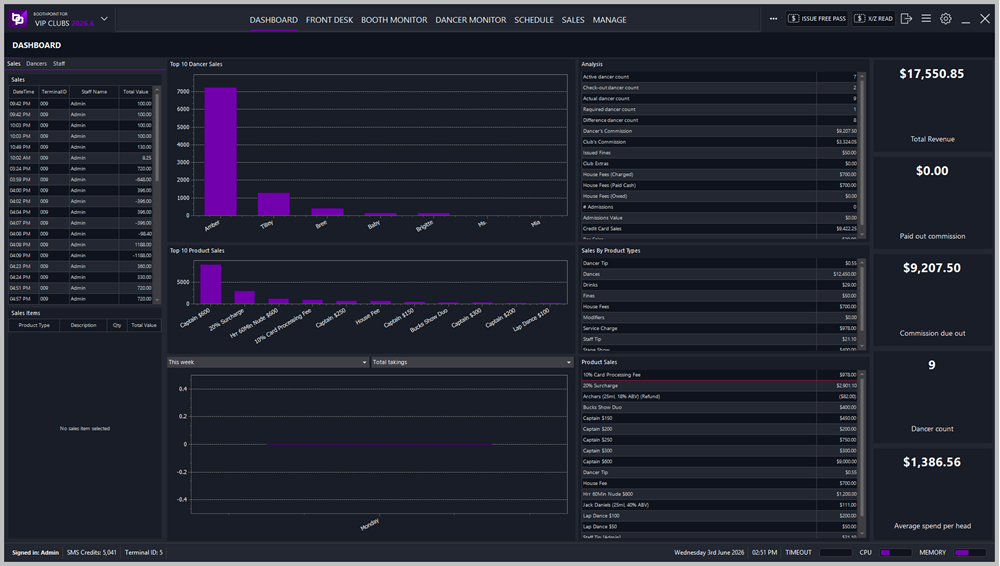
Main Navigation Bar
Located at the top of the screen, the navigation bar allows quick access to all major modules:
|
Menu
|
Description
|
|
Dashboard
|
Displays overall club performance, revenue, and activity summaries.
|
|
Front Desk
|
Manages dancer check‑ins, commissions, and product sales in real time.
|
|
Booth Monitor
|
Tracks booth usage, dancer assignments, and session status.
|
|
Dancer Monitor
|
Shows dancer activity, booth history, and commission totals.
|
|
Schedule
|
Handles shift planning, bookings, and availability.
|
|
Sales
|
Provides detailed transaction and revenue reports.
|
|
Manage
|
Contains administrative tools, system settings, and data management options.
|
Booth Monitor Panel
The Booth Monitor displays all active booths in a grid layout. Each booth tile represents a physical booth or private area within the club.
Booth Layout Example
-
Booths are numbered sequentially (#1–#24).
-
Each booth includes a label or description (e.g., LapDance, Red Velvet, Black Diamond, UP1, DOWN3).
-
Booths are grouped by floor or section for easy identification.
Booth Status
-
Empty Booths appear dark or inactive.
-
Occupied Booths show dancer names and session timers when active.
-
Special Booths (e.g., VIP or themed areas) are labelled accordingly.
Quick Menu
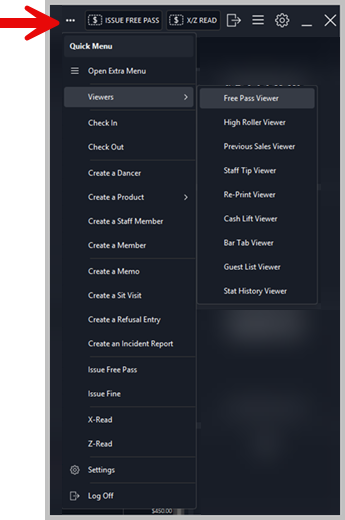
Accessible from the top‑right corner, the Quick Menu provides fast access to common administrative actions.
Available Actions
|
Option
|
Open Extra Menu
|
|
Viewers
|
Opens viewer panels for specific reports and data views.
|
|
Check In / Check Out
|
Manages dancer attendance and shift tracking.
|
|
Create a Dancer
|
Adds a new dancer profile to the system.
|
|
Create a Product
|
Opens a submenu for adding new product types.
|
|
Create a Staff Member
|
Adds a new staff record.
|
|
Create a Member
|
Registers a new customer or club member.
|
|
Create a Memo
|
Logs internal notes or operational messages.
|
|
Create a Sit Visit
|
Records site visits or inspections.
|
|
Create a Refusal Entry
|
Logs customer refusals for compliance tracking.
|
|
Create an Incident Report
|
Records incidents or disciplinary events.
|
|
Issue Free Pass
|
Issues complimentary entry passes.
|
|
Issue Fine
|
Applies fines to dancers or staff.
|
|
X‑Read / Z‑Read
|
Performs interim or end‑of‑day financial reads.
|
|
Settings
|
Opens system configuration options.
|
|
Log Off
|
Ends the current administrative session.
|
Viewers Sub‑Menu
Provides access to detailed reports and viewer panels.
|
Viewer
|
Description
|
|
Free Pass Viewer
|
Displays all issued free passes.
|
|
High Roller Viewer
|
Shows high‑value customer transactions.
|
|
Previous Sales Viewer
|
Lists historical sales data.
|
|
Staff Tip Viewer
|
Displays staff tip records.
|
|
Re‑Print Viewer
|
Allows reprinting of receipts or reports.
|
|
Cash Lift Viewer
|
Shows cash lift transactions.
|
|
Bar Tab Viewer
|
Displays open and closed bar tabs.
|
|
Guest List Viewer
|
Lists guests and VIP entries.
|
|
Stat History Viewer
|
Provides historical statistics and performance data.
|
Create a Product Sub‑Menu
Used to add new product types and financial categories.
|
Product Type
|
Description
|
|
Add New Dance Product
|
Creates a new dance or performance product.
|
|
Add New House Fee
|
Adds a new house fee type.
|
|
Add New Entry Fee
|
Defines entry or admission fees.
|
|
Add New Funny Money
|
Creates internal credit or voucher products.
|
|
Add New Drink Product
|
Adds beverages to the product list.
|
|
Add New Food Product
|
Adds food items to the product list.
|
|
Add New Shop Product
|
Adds merchandise or retail items.
|
|
Add New Membership
|
Creates membership packages.
|
|
Add New Petty Cash
|
Records petty cash transactions.
|
|
Add New Fine
|
Defines fine categories for staff or dancers.
|
|
Add New Stage Show
|
Adds stage show or event products.
|
|
Add New Other Income
|
Records miscellaneous income sources.
|
|
Add New Other Outgoing
|
Records miscellaneous expenses.
|
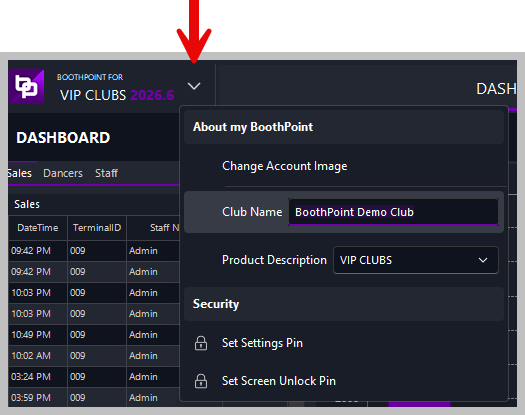
About My BoothPoint Menu
Accessible from the top‑left drop-down under the BoothPoint logo.
Options
-
Change Account Image – Updates the club logo or account image.
-
Club Name – Displays or edits the registered club name.
-
Product Description – Defines the BoothPoint product version (e.g., VIP CLUBS).
-
Security Settings
System Status Bar
Located at the bottom of the screen, the status bar provides real‑time system information:
|
Field
|
Description
|
|
Signed in
|
Current user account (e.g., Admin).
|
|
SMS Credits
|
Remaining text message credits for notifications.
|
|
Terminal ID
|
Identifies the active workstation.
|
|
Date & Time
|
Current system date and time.
|
|
Performance Indicators
|
Displays CPU and memory usage.
|
|
Timeout
|
Shows session timeout status.
|
Best Practices
-
Always verify booth status before performing a Z‑Read.
-
Use Check‑In/Check‑Out to maintain accurate dancer records.
-
Regularly update Security Pins to protect administrative access.
-
Use Incident Reports to document any operational issues or compliance events.
-
Perform Refresh before closing the session to ensure all data is current.
|