Bar Tab Viewer
🧭 Overview
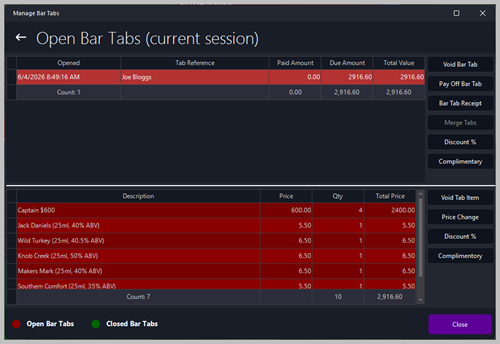
The Bar Tab Viewer displays all open bar tabs for the current session. It allows staff to view, manage, modify, and settle customer bar tabs, including itemized drink lists and payment actions.
This screen is used by bar staff, supervisors, and managers to track spending, apply discounts, void items, and close out tabs accurately.
🧾 Bar Tabs List (Top Panel)The top section shows all open bar tabs for the current session.
Each row represents a single customer tab. Columns
Selecting a tab loads its itemized contents in the lower panel. 🗂️ Bar Tab Items (Bottom Panel)The bottom section displays all items added to the selected bar tab.
Each row represents a drink or product added to the tab. Columns
A summary below the list shows:
🛠️ Bar Tab Actions (Right‑Side Buttons)Void Bar TabCancels the entire bar tab. Used when a tab was opened in error or must be removed completely. Pay Off Bar TabProcesses payment for the selected tab. This is used when the customer is ready to settle their bill. Bar Tab ReceiptPrints a receipt for the selected bar tab. Useful for customer review or end‑of‑night reconciliation. Merge TabsCombines two or more bar tabs into one. Used when customers move tables or want to consolidate bills. Discount %Applies a percentage discount to the entire bar tab. Ideal for promotions, staff comps, or manager‑approved adjustments. ComplimentaryMarks the entire bar tab as complimentary. Used for VIPs, promotions, or management‑approved comps. 🛠️ Item‑Level Actions (Bottom Right)Void Tab ItemRemoves a specific item from the bar tab. Used when an item was added by mistake. Price ChangeAllows staff to adjust the price of a specific item. Useful for special pricing or correcting errors. Discount %Applies a percentage discount to a single item. ComplimentaryMarks a specific item as complimentary. 📊 Status IndicatorsAt the bottom of the screen:
These indicators help staff monitor bar activity at a glance. 📈 Typical Use Cases
|
||||||||||||||||||||||||