|
This section explains how to delete or deactivate members in BoothPoint, and how to restore them from the Recycle Bin if needed.
🔎 Finding Members to Delete
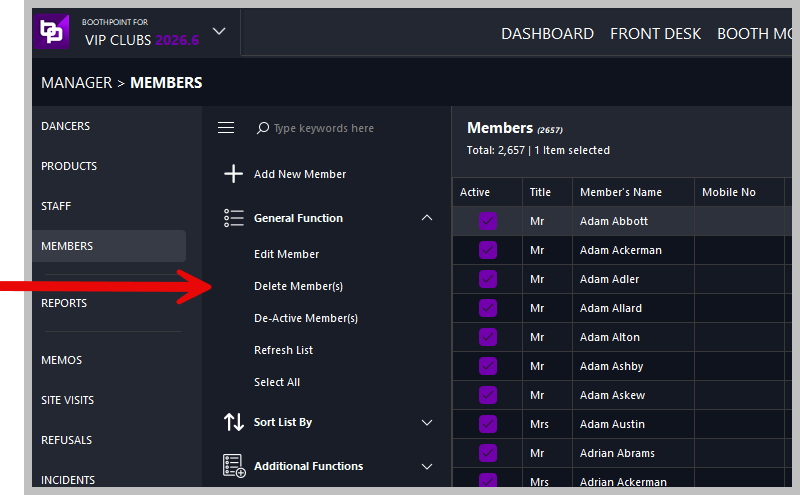
🧭 Navigation
-
Open the Back Office
-
Go to Manage → Members
-
Use the search box on the left to find the member
-
Search includes: club reference, full name, stage name, email, mobile number
👥 Selecting Multiple Members
🗑️ Deleting Members
👤 Delete a Single Member
👥 Delete Multiple Members
| ⚠️ |
Confirmation Message
A message will appear:
Are you sure you want to delete the selected members (6)?
The number in brackets shows how many members are selected. Select Yes to proceed or No to cancel.
|
|

|
Note
Members are not permanently deleted. They are moved to the Recycle Bin and can be restored at any time.
To deactivate members instead of deleting them:
This removes them from active lists without placing them in the Recycle Bin.
|
♻️ Restoring Members
If a member was deleted by mistake or has returned to the club, you can restore them easily.
🔄 Accessing the Recycle Bin
🧭 Navigation
-
At the top of the member list, tap or click the Recycle Bin tab
-
Use CTRL‑click to select one or more members to restore
🔁 Restoring Deleted Members
🔧 Restore Process
-
Select the member(s) in the Recycle Bin
-
On the left, under General Functions, tap or click Restore Member(s)
| ⚠️ |
Confirmation Message
A message will appear:
Are you sure you want to restore the selected members (6)?
Select Yes to restore or No to cancel.
|
|