|
Field Name
|
What it does
|
Options
|
| Title |
Select name title |
Mr
Mrs
Ms
Dr
Prof.
|
|
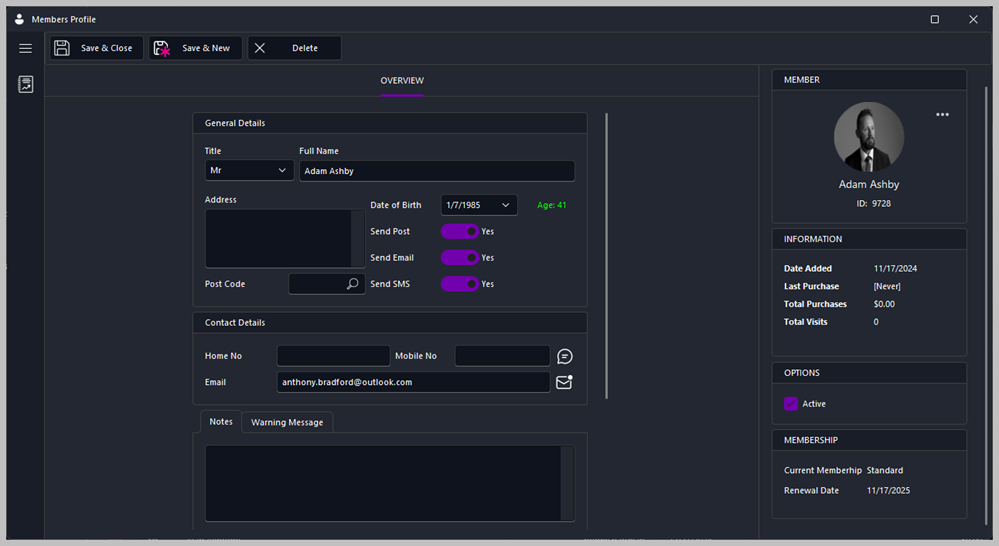
Full Name
|
Enter in the staff members' full name.
|
N/A
|
|
Address
|
Enter in the staff members' address.
|
N/A
|
|
Zip Code/Post Code
|
Enter in the staff members' zip code.
|
N/A
|
|
Date of Birth
|
Enter the dancer's date of birth. Note the staff members age is indicated on the right. If under the age limit, the label turns red and does not allow the record to be saved. See Options > Club Settings for more information.
|
N/A
|
|
Send Post
|
Check this if the member is happy to receive post from the club.
|
Default: Yes
|
| Send Email |
Check this if the member is happy to receive emails from the club. |
Default: Yes |
| Send SMS |
Check this if the member is happy to receive SMS messages from the club. |
Default: Yes |
|
|
Home No
|
Enter the staff members home telephone number.
|
N/A
|
|
Cell No/Mobile No
|
Enter the staff members cell number. Note to the right of the cell number is SMS button. Tap or click this send the staff member a text message. See Send a SMS Message for more information.
|
N/A
|
|
Email
|
Enter the staff members email address. Note to the right of the email is Email button. Tap or click this send the staff member an email from the club. See Emailing Staff for more information.
|
N/A
|
|
|
Notes
|
Enter any type of notes relating to the staff member.
|
N/A
|
|
Warning Message
|
Enter a warning message on the member. This message will pop up anytime the member is selected such as; checking in/out and purchasing goods.
|
N/A
|
|
|
Membership
|
This is the current membership
|
N/A
|
|
Signup Date
|
The date the member signedup the membership
|
N/A
|
|
Renewal Date
|
Date when the current membership is due for renewal.
|
N/A
|