|
You can contact members individually or in groups using SMS directly from the Back Office. This guide shows you how.
📩 Send an SMS to an Individual Member

🧭 Navigation
-
Open the Back Office
-
Go to Manage → Members
-
Use the Search Box on the left to find the member
-
Search includes: club reference, full name, stage name, email, mobile number
👤 Open the Member Profile
📨 Send the SMS
-
Under Contact Details, locate the member’s email and mobile number
-
Tap or click the SMS Button to the right
-
The Send Text Message window appears with the member’s number pre‑loaded in the To: field
-
Type your message in the text box
-
Tap or click Send
📝 Note
|

|
Note
Each text message can have 160 characters per message. Therefore if your text is 165 characters sending to 3 staff members, 6 credits will be used. Above the message is an indicator showing how many character there are in the message as well as how many messages have been entered.
|
|
|
Tip
-
To add multiple cell numbers in the To field separate the numbers with a semi colon (;).
-
You can delete a name/cell number , tap or click the X to the right of the name.
-
Change or set the senders name or number look at Options > SMS Texting.
|
📧 Send an SMS to a Group of Members
🧭 Navigation
-
Open the Back Office
-
Go to Manage → Members
-
Use the Search Box to locate members
👥 Select Multiple Members
📨 Send the Group SMS
-
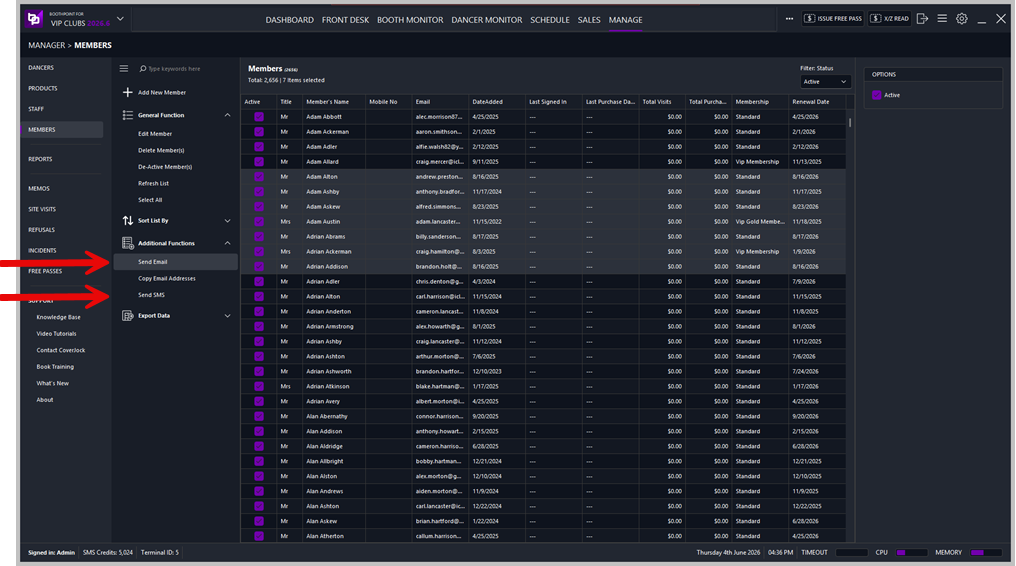
On the left, under Additional Functions, tap or click Send SMS
-
The Send Text Message window appears with all selected numbers pre‑loaded
-
Type your message
-
Tap or click Send
📝 Note
The same SMS rules apply:
-
160 characters = 1 message
-
Longer messages multiply credits by the number of recipients
-
Character and message counters are shown above the text box
|
|
Note
Each text message can have 160 characters per message. Therefore if your text is 165 characters sending to 3 staff members, 6 credits will be used. Above the message is an indicator showing how many character there are in the message as well as how many messages have been entered.
|
|
|
Tip
-
To add multiple cell numbers in the To field separate the numbers with a semi colon (;).
-
You can delete a name/cell number , tap or click the X to the right of the name.
-
Change or set the senders name or number look at Options > SMS Texting.
|
|