About my Club

Within general options there are settings to do with the club such as club name, email addresses, telephone number and so on. To receive your HQ emails and stat reports it's essential to set you email addresses and HQ email addresses.


About my Club


Setting

What it does

Options

Club Name

Enter your club name in here.

N/A

Contact Number

Enter your club contact telephone number in here.

N/A

Product Description

Choose brand wording to show in the top right hand corner of your CoverJock screen

CLUB AUTOMATION (default)

STRIP CLUBS

VIP CLUBS

COUCH DANCING

POLE DANCING

PRIVATE DANCING

VIP DANCING

POLE SHOWS

STRIP SHOWS

STRIP JOINTS

BARS

NIGHT CLUBS

EXOTIC CLUBS

CLUBS

Email Addresses

Multiple email addresses are permitted, simply separate using a semi colon. For example: support@coverjock.com;help@coverjock.com


A stat report can automatically be emailed to the email addresses. Click here to read more

N/A

Enable Daily Stat Report

Enable the system to automatically email a stat report to the given email address

On (default)

Off

Settings Pin Code

Set a pin code to access the settings

N/A


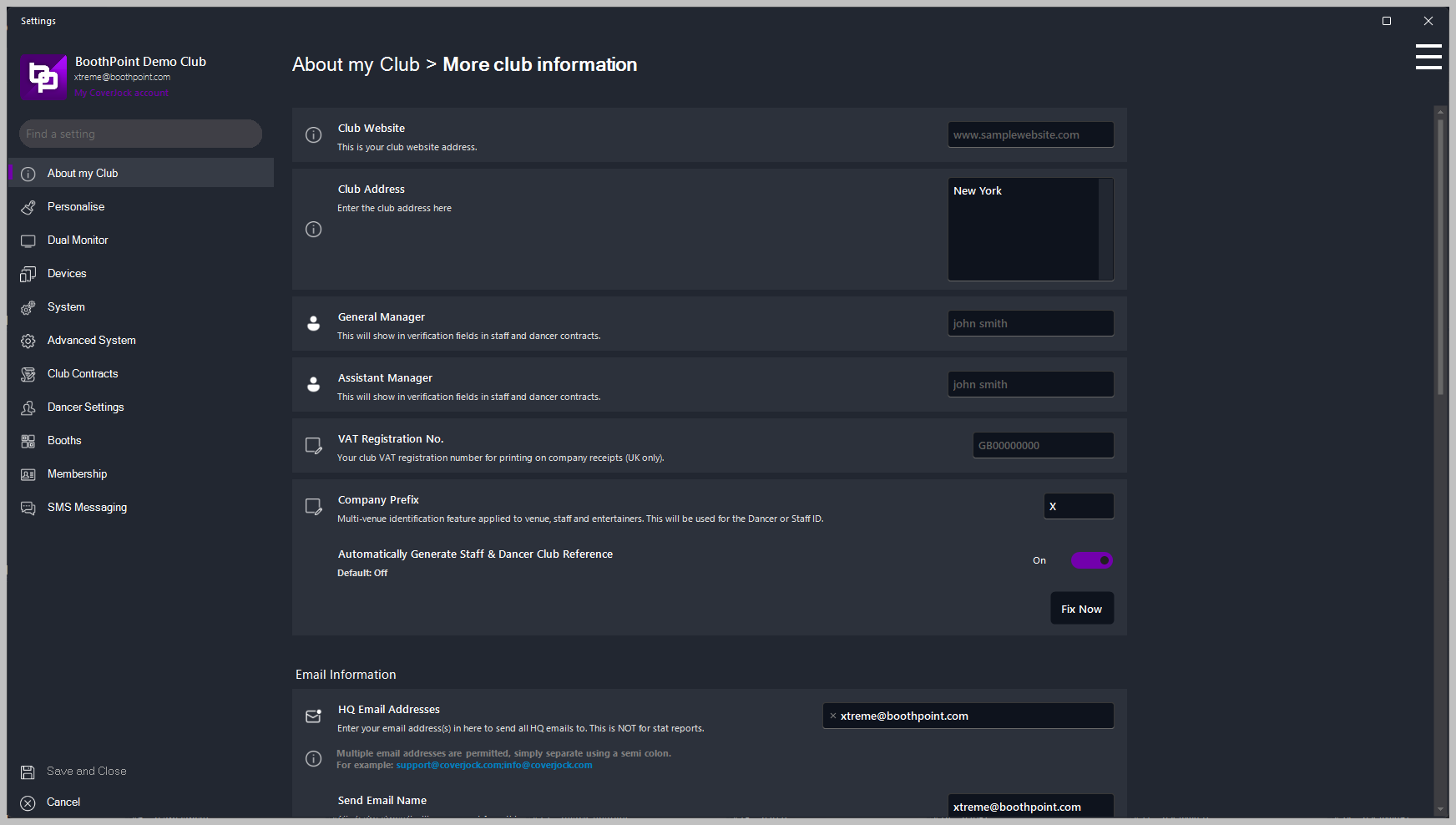
More club information


Setting

What it does

Options

Club Website

Your club website address

N/A

Club Address

Your clubs postal address

N/A

General Manager

Will show in verification fields in staff and dancer contracts

N/A

Assistant Manager

Will show in verification fields in staff and dancer contracts

N/A

Tax/VAT Registration No.

Your club Tax/VAT registration number for printing on company receipts

N/A

Company Prefix

Multi venue identification feature applied to venue, staff and entertainers. Used for the Dancer or Staff ID. For example: if the company prefix is USA, the dancer club ID would automatically be USA-00001

N/A

Email Information

HQ Email Addresses

The club name you want to see in the stat report. Multiple email addresses are permitted, simply separate using a semi colon.

For example: support@boothpoint.com; help@boothpoint.com

N/A

Send Email Name

All electronic mail will appear sent from this name.

N/A

Custom SMTP Details

Dialog form opens asking for:

  • Email address

  • Outgoing mail server (SMTP)

  • Enable SSL

  • User name

  • Password

N/A

Social Media Team

Use this section to enter your social media team details. This will email your social media team a list of checked in dancers so they can update you social media sites.

Enable Social Media Emailing

Check this to enable emailing

Note: This is password protected

On

Off (default)

Social Media Email

Enter your social media team's email address(es) here to send a list of checked in dancers

Multiple email addresses are permitted, simply separate using a semi colon. For example:

xtrememarketingusa@gmail.com;media@coverjock.com

N/A

Send dancer list at what time(s)

Select as many times during the day this email is going to be sent.


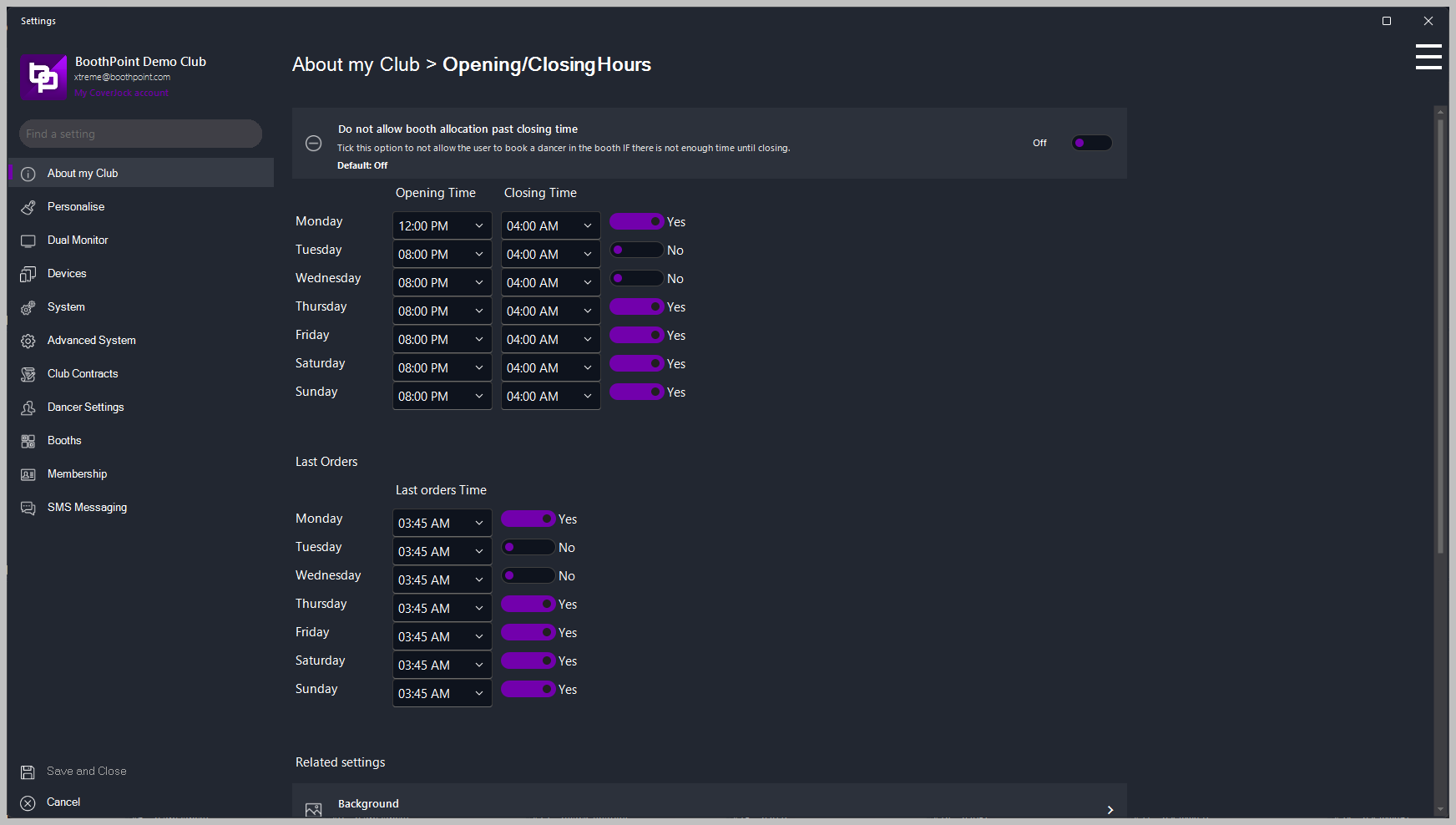
Opening/Closing Hours


Setting

What it does

Options

Do not allow booth allocation past closing time

When allocating dancers to booths, by ticking this box CoverJock will not allow booths to be allocated if the end time is greater than closing time. For example: if closing time is at 6am, at 5:10am and the customer wants a 1 hour VIP, the system will not allow it as the end of the private dance would be 6:10am.

On (default)
Off

Opening Time

This is the time your club is set to open.

N/A

Closing Time

This is the time your club is to close.

N/A

Closing Time (Tick box)

Activates timed closing down procedures.

On (default)
Off

Last Orders

This is the time last orders is to be called.

N/A

Last Orders (Tick box)

By ticking this box CoverJock will play the last orders announcement at that time.

On (default)
Off


HQ Emails


When running BoothPoint certain functions can be emailed to head office (HQ). Below are a list of HQ emails that are sent throughout the session - by default they are all set to On.


  • Email when Drink Tokens are Issued
  • Email when Dancer is AddedEmail when Dancer is Added
  • Email when Staff Member is Added
  • Email when Staff Member is Added
  • Email when Member is Added
  • Email when House Fee is Change
  • Email when Emergency Stop is Pressed
  • Email High Roller form is Entered
  • Email when Any Fine is Issued
  • Email when Memo is Created and Marked as Read
  • Email when Incident Report is Created
  • Email when Site Visit is Created
  • Email when Refusal Entry is Created
  • Email when Retainers Are Forfeited
  • Email when Invoice is Deleted
  • Email when SMS Messages are sent