Devices
|
|
||||||||||||||||||||||||||||||||||||||||||||||||||||||||||||||||||||||||||||||||||||||||||||||||||||||||||||||||||||||||||||||||||||||||||||||||||||||||||||||||||||||||||||||||||||||||||||||||||||||||||||||||||||||||||||||||||

|
Setting |
What it does |
Options |
|
Receipt Printer |
Lists all system receipt printing devices installed on the local machine. |
N/A |
|
Header Text |
Personalize your receipts by setting some header text to be printed at the top of every receipt |
[Empty] |
|
Footer Text 1 |
Personalize your receipt footer, displaying this text at the top of the footer text |
Thank you for your custom.<br>Check out our website for latest packages %website% |
|
Footer Text 2 |
Personalize your receipts by setting some footer text to be printed at the bottom of every receipt |
[Empty] |
|
|
||
|
High Roller Custom Agreement Text |
Personalize the agreement text printed on the high roller |
BY SIGNING BELOW I CONFIRM MY AGREEMENT TO THE ABOVE TRANSACTION AND AGREE FOR MY CARD TO BE CHARGED WITH THE "TOTAL DUE FROM CARD":- |
|
High Roller Custom Footer Text |
Personalize the footer text on the high roller print |
PLEASE NOTE THE MERCHANT COPY OF THE TRANSACTION MUST BE STAPLED TO THIS FORM FOR SUBMISSION TO HEAD OFFICE |
|
|
||
|
When to Print |
Use this option choice to set when to print the receipt after a transaction. |
Always Print Receipt |
|
Display Receipt Before Printing |
Use this option to view the receipt before printing. If the option is not ticked, it will print the receipt straight away. |
On |
|
|
||
|
Print Check-in Receipt |
Check this option to print a receipt for the dancers when they check-in and pay any part of their house fee. |
On (default) Off |
|
Print Outstand Pay-Out Receipt |
Check this option to print a receipt when paying out dancers from their outstanding account. |
On |
|
Print Tip Entry Receipt |
When the customer is paying by credit card, print this receipt before the transaction goes through for the cusomter to enter the tip amount and sign |
On |
|
|
|
|
|
Always print when paid with Credit Cards |
When a customer pays with a credit card, tick this option to always print a receipt. |
On (default) Off |
|
Always print when paid with Cash |
When a customer pays with cash, tick this option to always print a receipt. |
On |
|
Print Email on the Header of the Receipts |
Turn this option on the show the company email on the header of every receipt. |
On (default) Off |
|
|
||
|
Open Drawer String |
Each receipt printer has a specific escape sequence to open the cash drawer. For example: the string to open the cash drawer with a Maxatec MT200E is:
(27)+"p"+(0)+"2"+"2"
To send an escape use round brackets and the character number, for all other characters rap in quotes. |
N/A |
|
List |
Shows a screen with a list of most receipt printers and the cash drawer opening string. |
N/A |
|
Test Open |
Press this button to test opening the cash drawer. |
N/A |
|
|
||
|
Use simple high roller print |
The simple high roller receipt excludes items purchased, total purchase value and credit card charges. |
On |
|
Use simple terminal ZRead print |
Check this box to print a summary receipt for the terminal's zread. |
On |
|
Use simple dancer ZRead print |
Check this box to print a summary receipt for the dancer's zread. |
On |
|
|
||
|
Always print when paid with <cash> |
When a customer pays with cash, tick this option to always print a receipt. |
On |
|
Always print when paid with <credit cards> |
When a customer pays with a credit card, tick this option to always print a receipt. |
On |
|
Always print Dance Tokens |
When a customer pays for a dance, tick this option to always print a drink token on the receipt printer. |
On |
|
|
Note If this machine is a POS station and a scanner or webcam is select, after a High Roller has been signed the webcam can be used to take a picture of the customer and/or additional ID can be scanned. |

Other Devices
|
Setting |
What it does |
Options |
|
Standard Printer |
Lists all system printer devices installed on the local machine. |
N/A |
|
Flatbed Scanner |
Lists all system twain scanning devices installed on the local machine. |
N/A |
|
Webcam |
Lists all system twain webcam devices installed on the local machine. |
N/A |
Pager System
|
Setting |
What it does |
Options |
|
Enable Pager Transmitter on This PC (Tick Box) |
The lighting or pager system is connected to one computer. The other computers running BoothPoint all tell the main machine to turn the light or pager on. Tick this box on the computer and the lighting or pager is connected to. |
On |
|
COM Port |
Select which port the pager system is connected to. |
Range: COM 1 - 10 |
|
Cap Code (i.e. 070) |
Each pager system has a unique code called a capcode. If there is another building close by which has the same pager system, there is no confusion which pagers use which base unit. |
Default: 070 |
|
Start Code |
Version 1: Chr(1) & "1,1," & pagercode & Chr(4) Version 2: "CN" & pagercode & "A" Version 3: "NF" & pagercode & "A" |
N/A |
|
End Code |
Version 1: Chr(1) & "1,1," & pagercode & Chr(4) Version 2: "CN" & pagercode & "A" Version 3: "NF" & pagercode & "A" |
N/A |
|
Pager IP Address |
The IP address of the main computer where the pager base unit is attached. |
N/A |
|
|
||
|
Additional Travel Time (secs) |
Set the amount of time in seconds to allow the dancer to get to the booth/area |
Range: 0 - 100 seconds Default: 15 seconds |
|
Warning Before End (secs) |
Set this to reduce the time in seconds to give the dancer pre-warning it's coming to an end |
Range: 0 - 100 seconds Default: 60 seconds |
Smart Devices
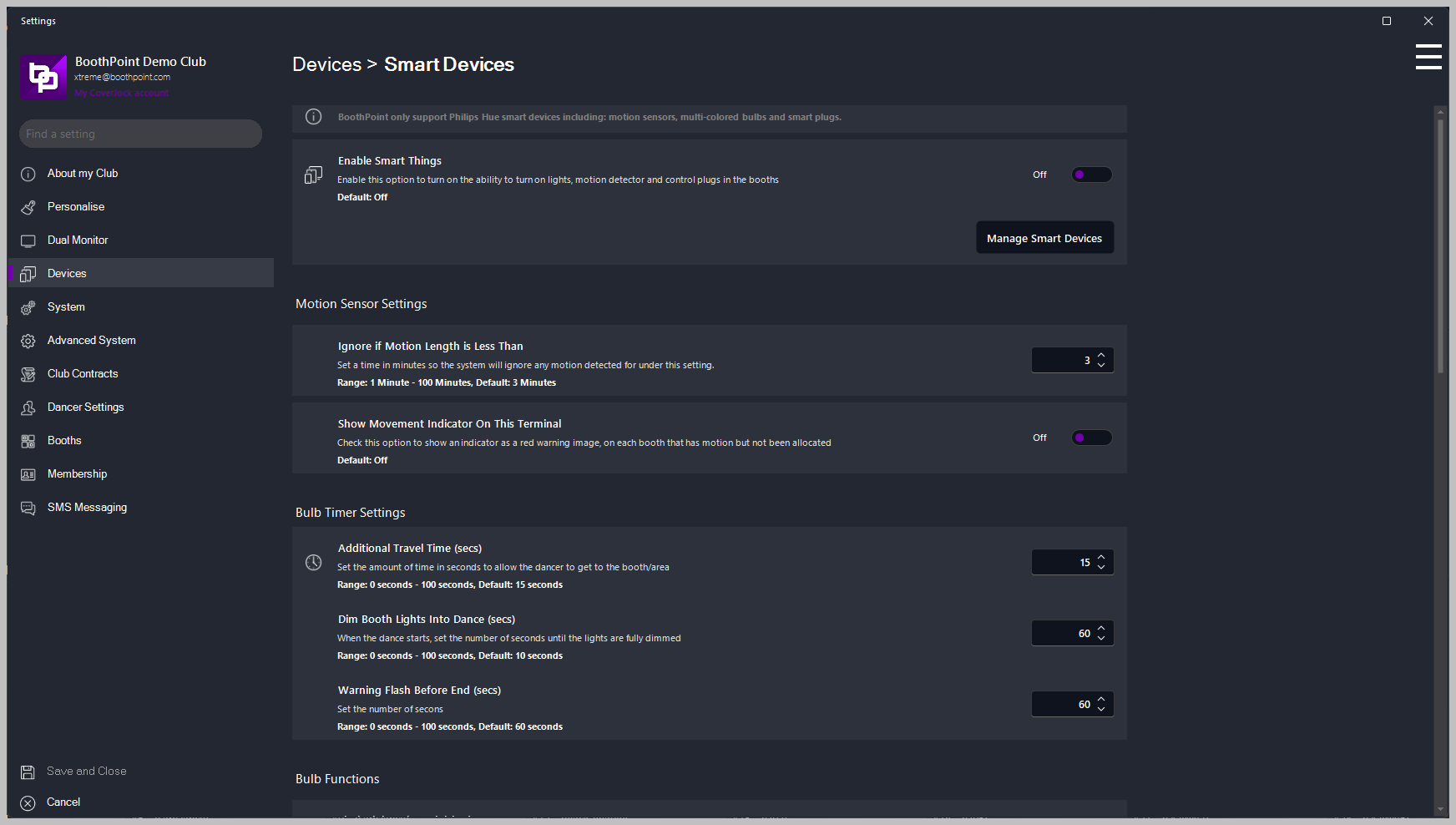
BoothPoint only support Philips Hue smart devices including: motion sensors, multi-coloured bulbs and smart plugs.
|
|
Tip For more information on which Philips Hue devices are support, check out Requirement |
|
Setting |
What it does |
Options |
| Enable Smart Things |
Enable this option to turn on the ability to turn on lights, motion detector and control plugs in the booths. Note: Password required to enable this feature |
On |
Motion Sensor Settings |
||
| Ignore if Motion Length is Less Than | Set a time in minutes so the system will ignore any motion detected for under this setting. |
Range: 1 - 100 minutes Default: 3 minutes |
| Show Movement Indicator On This Terminal | Check this option to show an indicator as a red warning image, on each booth that has motion but not been allocated | On Off (default) |
Bulb Timer Settings |
||
|
Additional Travel Time (secs) |
Set the amount of time in seconds to allow the dancer to get to the booth/area |
Range: 0 - 100 seconds Default: 15 seconds |
|
Dim Booth Lights Into Dance (secs) |
When the dance starts, set the number of seconds until the lights are fully dimmed |
Range: 0 - 100 seconds Default: 60 seconds |
|
Warning Flash Before End (secs) |
Set the number of secons |
Range: 0 - 100 seconds Default: 60 seconds |
|
|
||
|
Additional Travel Time (secs) |
Set the amount of time in seconds to allow the dancer to get to the booth/area |
Range: 0 - 100 seconds Default: 15 seconds |
|
Warning Before End (secs) |
Set this to reduce the time in seconds to give the dancer pre-warning it's coming to an end |
Range: 0 - 100 seconds Default: 60 seconds |
Bulb Functions |
||
|
Flash Light When Finished |
--- |
On (default) Off |
|
Turn Lights On Full When Scheduled to Finish |
--- |
On (default) Off |
Customize Smart Bulbs [Idle] |
||
|
Color When Idle |
--- |
Default: White |
|
Brightness When Idle |
--- |
Range: 0 - 100 seconds Default: 60 seconds |
Customize Smart Bulbs [Preparation] |
||
|
Color When Getting Prepared |
--- |
Default: Magenta |
Customize Smart Bulbs [Dancing] |
||
|
Color When Dancing |
--- |
Default: Pink |
|
Brightness When Dancing |
--- |
Range: 2% - 100% Default: 5% |
Customize Smart Bulbs [Over Time] |
||
|
Color During Over Time |
--- |
Default: Blue |
|
Brightness During Over Time |
--- |
Range: 0% - 100% Default: 20% |
Customize Smart Bulbs [Flashing] |
||
|
Color When Flashing |
--- |
Default: Red |
|
Brightness When Flashing |
--- |
Range: 0% - 100% Default: 50% |
Related Topics