Managing High Rollers
🧭 Overview
BoothPoint includes a High Roller process designed to protect both the venue and the customer by reducing the risk of buyer’s remorse after large credit‑card transactions. When a customer spends over the threshold defined in:
Options > Advanced System > General Charges > High Roller Alert Value
…the High Roller workflow automatically begins.
🧾 High Roller Workflow Steps
1. Signature Strip CheckA red warning screen appears instructing staff to:
“Check the signature strip on the back of the card!”
This ensures the card is signed and physically valid before continuing. 2. Swipe the Customer’s Credit CardThe system prompts the user to swipe the customer’s card.
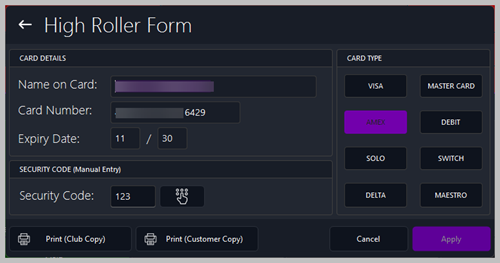
3. High Roller FormOnce the card is swiped (or Manual is selected), the High Roller Form appears. This form captures all required payment and verification details. Below is a full breakdown of every field and control on the form. 📑 High Roller Form FieldsCARD DETAILSName on Card
Card Number
Expiry Date
SECURITY CODE (Manual Entry)Security Code
CARD TYPEA selectable list of supported card types:
The user must select the correct card type before continuing. The selected card type is highlighted. FORM ACTIONSPrint (Club Copy)Prints the club’s internal receipt for record‑keeping and auditing. Print (Customer Copy)Prints the customer’s receipt for their own records. CancelCancels the High Roller process and returns to the previous screen. ApplyConfirms the transaction and moves to the identity‑verification stage. 🔍 Post‑Form Verification Steps7. Scan Additional Proof of IDIf a scanner is attached, the system prompts staff to scan the customer’s ID.
8. Take Customer PictureIf a webcam is attached, the system prompts staff to capture a photo of the customer.
9. Print the Final ReceiptA final High Roller receipt is generated and printed, completing the process.
|
||||