Inventory Management
|
The Inventory section allows you to monitor, adjust, and control stock levels for all products sold within your venue. You can check quantities, record deliveries, perform stock takes, and make manual adjustments — all from one central location. 🧭 Accessing Inventory Tools📂 Navigation
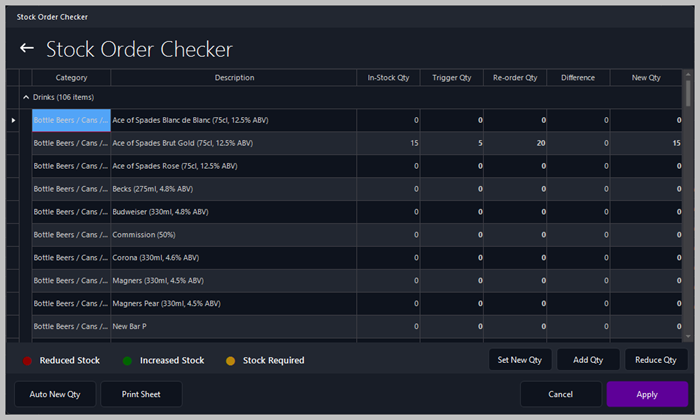
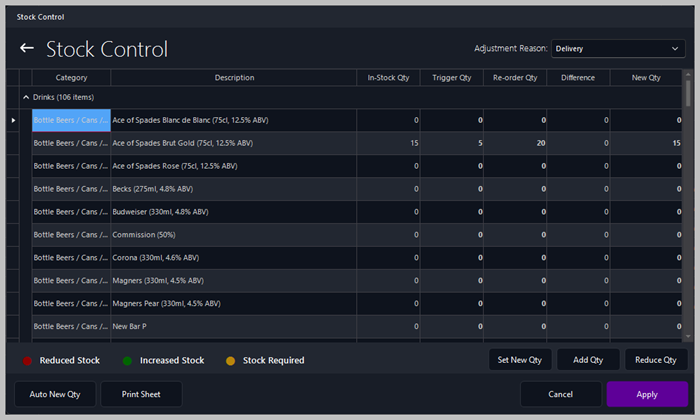
Each option opens the Stock Control window, where you can view and update product quantities.
📋 Stock Order Check |
|
|
Tip
Always record deliveries immediately to keep your stock data accurate and avoid discrepancies during stock takes. |

🧮 Stock Take
🧾 Overview
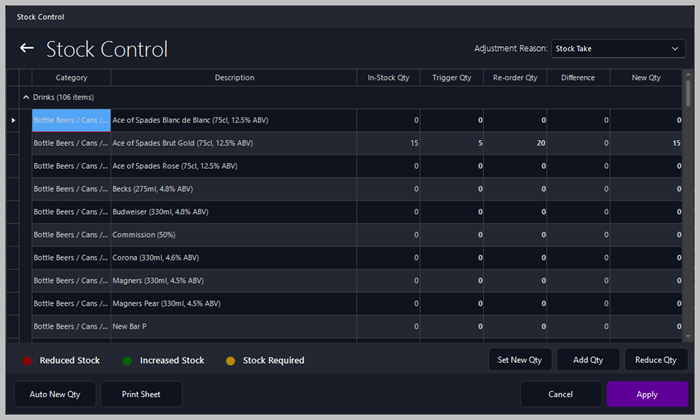
Use Stock Take to perform a full inventory count. This process verifies actual quantities against system records.
⚙️ How It Works
-
Select Adjustment Reason: Stock Take
-
Enter the counted quantities in the New Qty column
-
Use Set New Qty to replace existing stock values
-
Tap or click Apply to update the system
|
|
Tip
Perform regular stock takes — weekly or monthly — to maintain accurate inventory records and detect losses early. |
🔧 Stock Adjustments
🧾 Overview
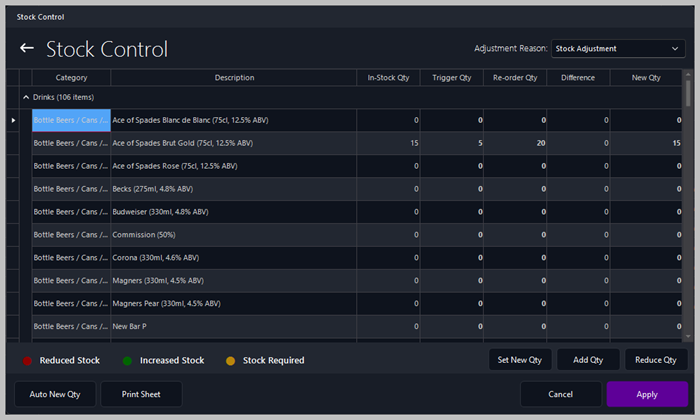
Use Stock Adjustments to correct discrepancies or record changes not related to deliveries or stock takes. Examples include damaged goods, promotional giveaways, or manual corrections.
⚙️ How It Works
-
Select Adjustment Reason: Stock Adjustment
-
Enter the new quantity or use Reduce Qty / Add Qty as needed
-
Tap or click Apply to confirm the adjustment
|
|
Tip
Always include a reason for adjustments to maintain clear audit trails and accountability.
Color indicators help you instantly identify stock status — red for low, green for replenished, and yellow for reorder required. |
| ⚙️ |
Best Practice
Keep your stock levels updated daily to ensure accurate reporting and smooth operations. Use Print Sheet before deliveries or stock takes to have a physical reference list. |