|
The Modifier Setup screen allows you to create, edit, and link groups of modifiers to specific products. Modifiers are used to add optional extras or variations to items sold through the POS system — for example, drink mixers, sauces, or add‑ons.
🧭 Accessing Modifier Setup
📂 Navigation
-
Open the Back Office
-
Go to Manage → Products
-
On the left panel, under Bar Functions, tap or click Modifier Setup
The Modifier Setup window will open, displaying three main sections: Modifiers, Modifier Items, and Item Details.
🗂️ Modifiers Panel
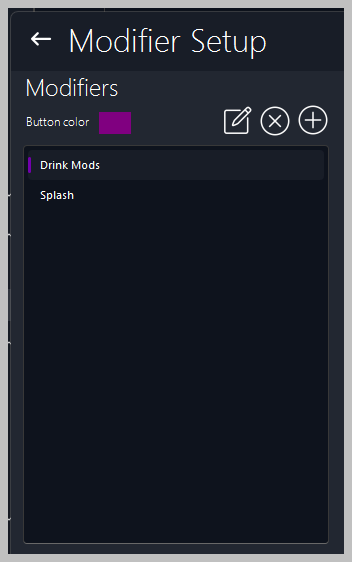
🧩 Overview
The Modifiers panel lists all modifier groups available for use, such as:
Each group can contain multiple modifier items (for example, Coke, Diet Coke, Sprite).
⚙️ Modifier Controls
Use the icons above the list to manage modifier groups:
-
Add New Modifier — create a new modifier group
-
Edit Modifier Name — rename an existing group
-
Delete Modifier — remove a group from the list
-
Change Button Colour — assign a colour for easy identification on the POS screen
🧾 Modifier Items Panel
📋 Overview
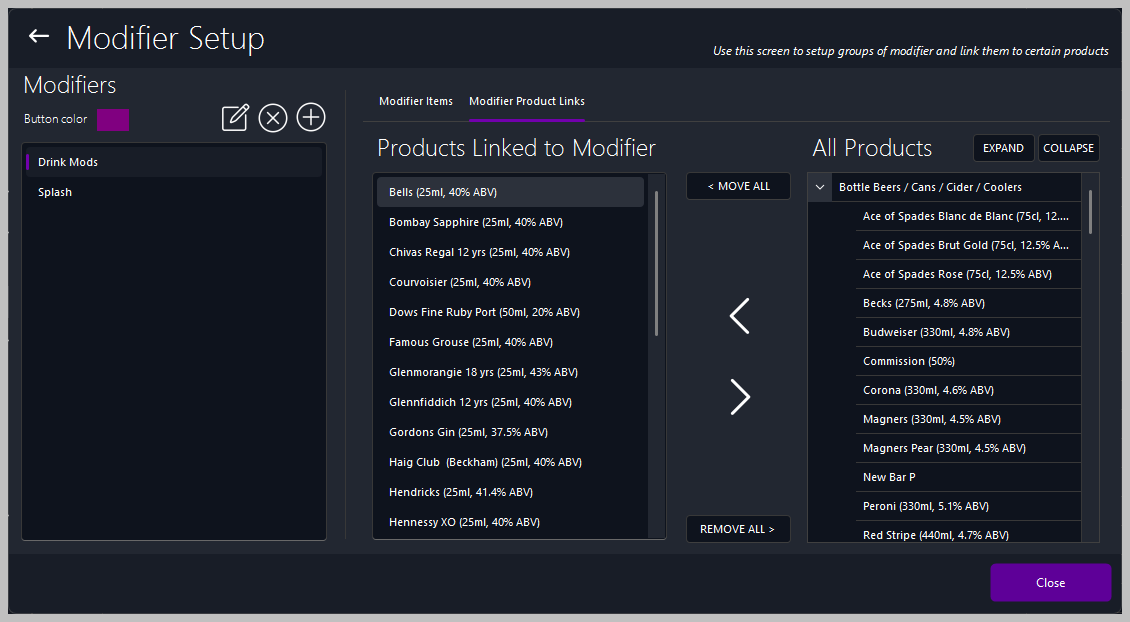
The Modifier Items panel displays all items within the selected modifier group. Each item represents a selectable option on the POS system.
⚙️ Item Controls
Use the icons above the list to manage modifier items:
-
Add New Item — create a new modifier option
-
Edit Item Name — rename an existing item
-
Delete Item — remove an item from the group
-
Move Up / Move Down — reorder items within the group
🔄 Moving Items Between Groups
To move an item to another modifier group:
-
Select the item
-
Choose the destination group from the Select Modifier to Move drop-down
-
Tap or click Move Modifier
🧾 Item Details Panel
🧩 Overview
The Item Details panel allows you to define the properties of each modifier item.
⚙️ Fields
-
Description — name of the modifier (e.g., Coke, Diet Coke)
-
Sales Price — optional price for the modifier (e.g., £0.50 for a mixer)
-
Tax Code — select the appropriate tax rate
-
Button Color — assign a color for quick recognition on the POS screen
🔗 Modifier Product Links Tab
📋 Overview
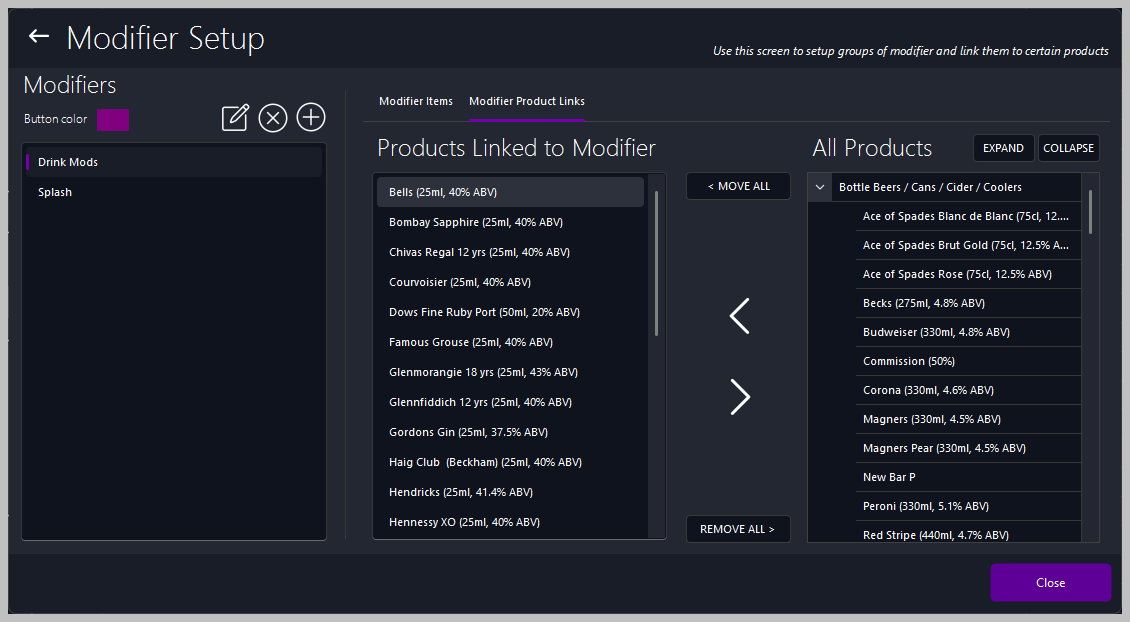
Use the Modifier Product Links tab to link modifiers to specific products. This ensures that only relevant modifiers appear when selling certain items.
⚙️ Linking Products
-
Products Linked to Modifier — shows all products currently linked
-
All Products — displays all available products in the system
-
Use the arrow buttons to add, remove, or move all products between lists
-
Expand / Collapse — show or hide product categories for easier navigation
💾 Saving Changes
✔️ Save Options
|

|
Tip
Use consistent color coding for modifiers — for example:
-
Blue for mixers
-
Red for sauces
-
Green for extras
This helps staff identify options quickly during service.
|
| ⚙️ |
Best Practice
Regularly review modifier groups to ensure all products have the correct options linked. Removing unused modifiers keeps your POS layout clean and efficient.
|
|