Adding & Editing Dancers

đź§­ Overview

In this short help guide, we’ll walk through how to add a new dancer in BoothPoint. You’ll learn how to:


  • Enter dancer details

  • Sign contracts

  • Scan ID documents

  • Set their working schedule

  • Add CoverJock music (if installed)


➕Adding a New Dancer

Dancers are created in the Back Office.


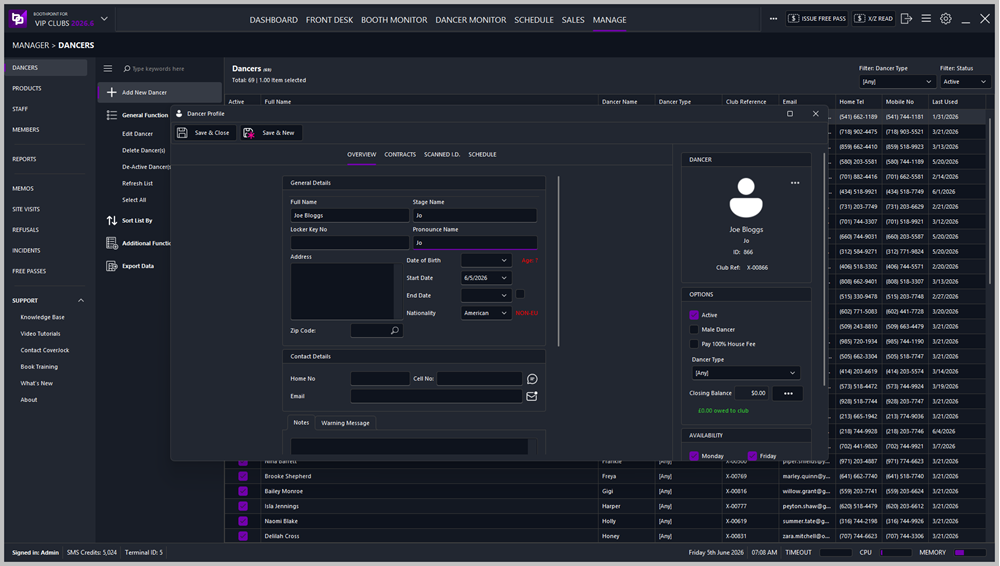
  1. Navigate to the Manage tab

  2. Select Dancers from the left navigation menu

  3. Press Add New Dancer


This opens the full dancer profile screen.


📝 Entering Dancer Information

Begin by entering the dancer’s basic details such as:


  • Dancer Name

  • Stage Name

  • Gender

  • Contact Information


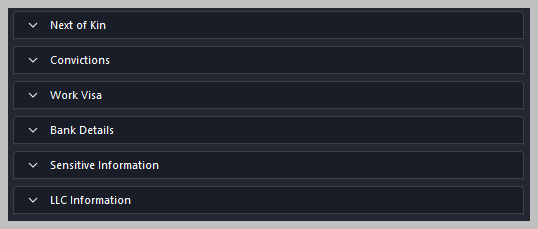
You can also complete additional optional fields if you wish to store more detailed information:


  • Next of Kin

  • Convictions

  • Work Visa

  • Sensitive Information

  • LLC Information


These fields are not required but are available for clubs that need deeper record‑keeping.


⚙️ Additional Options (Right‑Hand Panel)

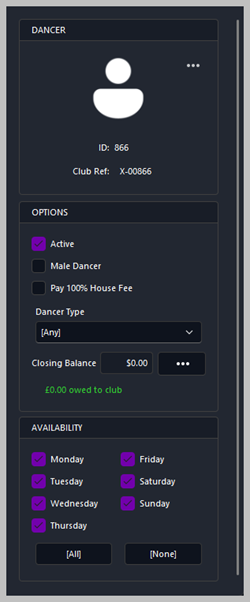
On the right side of the screen, you’ll find extra configuration options for the dancer.


Dancer Type


Choose whether the dancer is:


  • Stage Only — performs stage shows but does not do VIP dances

  • VIP Only — performs VIP dances but does not appear on stage

  • Both — the default option for most dancers


Availability


You can set the dancer’s general availability here. This is for reference and planning and does not affect check‑in rules.


📝 Contracts Tab


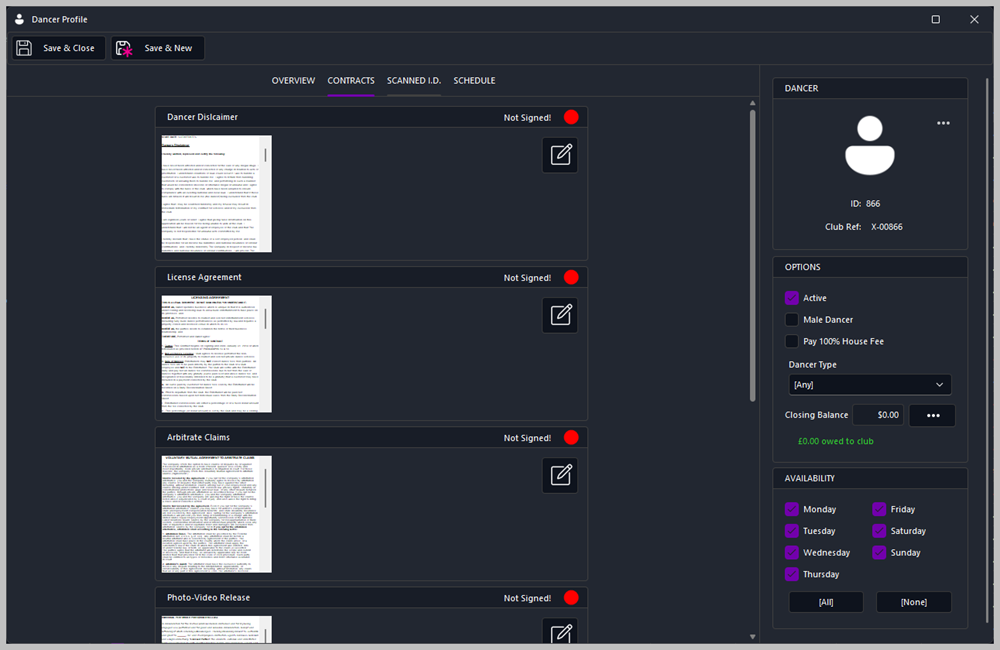
Next, head over to the Contracts tab.


This is where the dancer signs their required documents. Simply select each contract and the dancer can sign directly on screen.


(For demonstration purposes, you can sign quickly to show how the workflow operates.)


Tip

To sign the contract, the staff member needs to read the document and scroll all the way to bottom. Once at the bottom a button appears in the bottom left, tap or click Sign Contract button. Depending on what variables have been added to the document depends on what signature, print or date is required.


Options > Club Contracts > Dancer Contracts

🪪 Scanned ID Tab


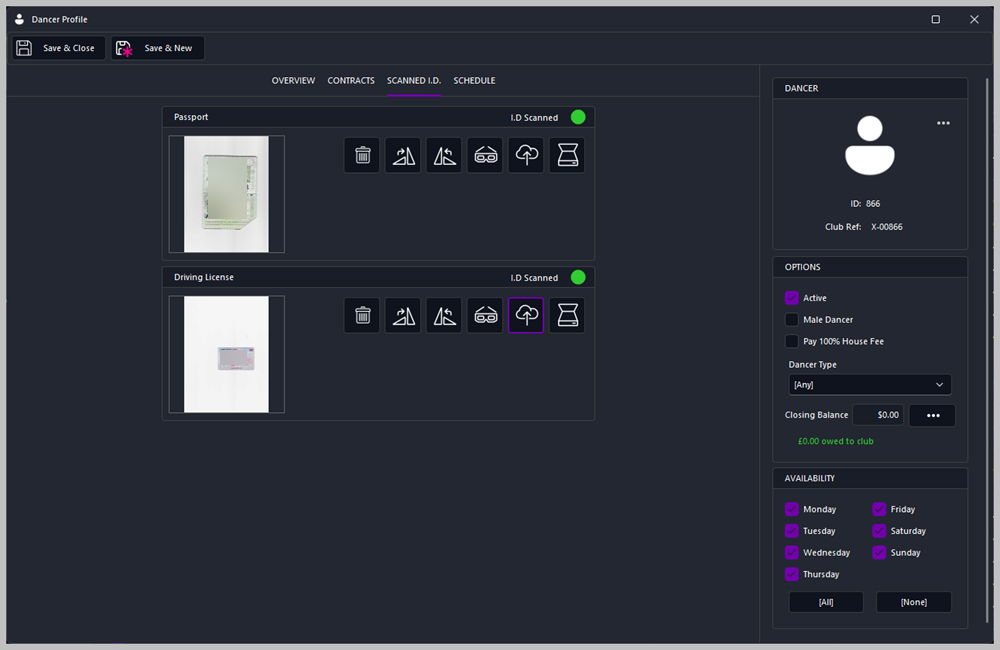
Move to the Scanned I.D. tab.


This works the same way as the Contracts tab, but instead of signatures, it captures ID documents using a flatbed scanner.


You can scan:


  • Passports

  • Driving licences

  • Any other accepted ID


Each scan is stored securely in the dancer’s profile.


Tip

Staff Contracts and various other options can be setup here:

Options > Club Contracts > Dancer Contracts


đź“… Schedule Tab


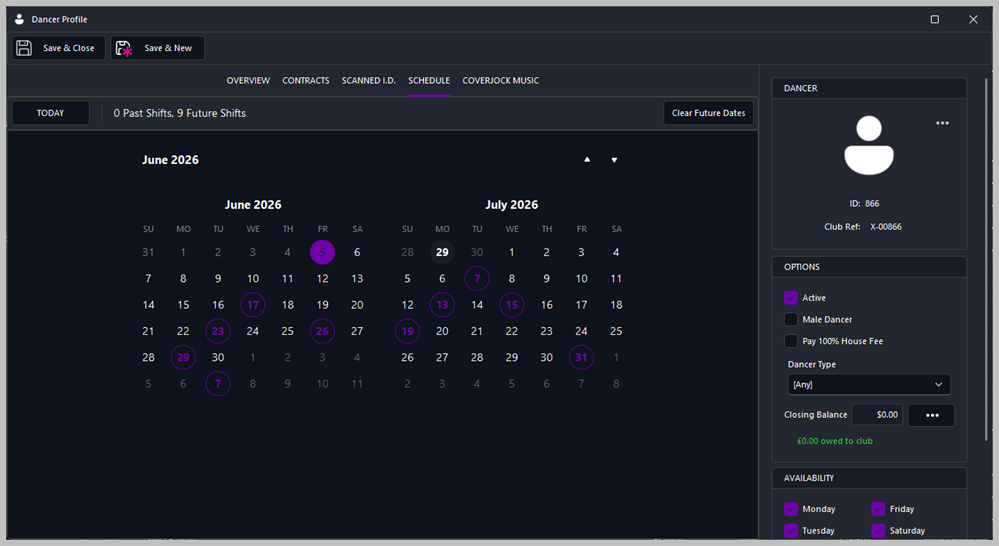
Next is the Schedule tab.


Here you can set which days the dancer is expected to work. Simply click the days of the week to mark them as scheduled.


This helps with planning, staffing, and timetable visibility.

🎵 CoverJock Music Tab


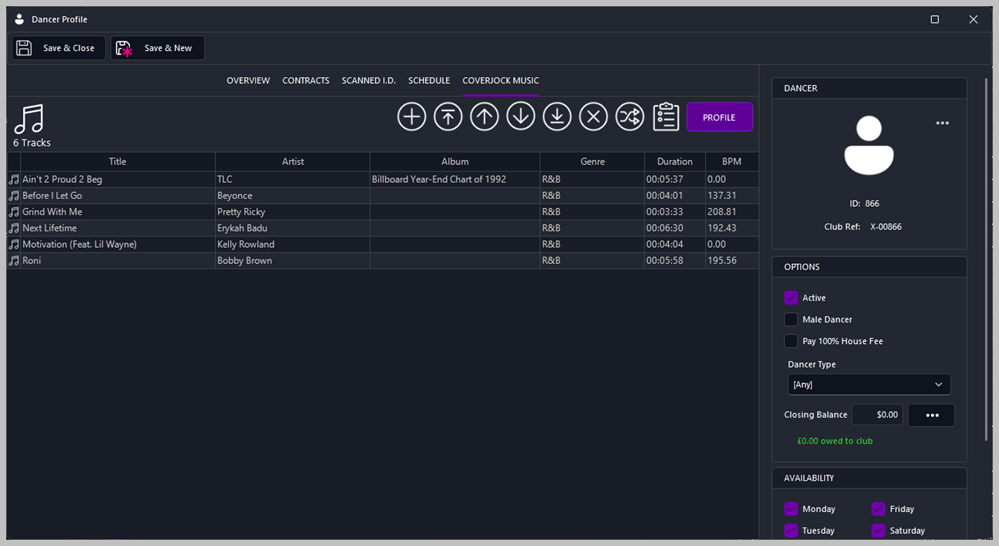
If your system includes CoverJock, you’ll see the CoverJock Music tab.


This allows you to pre‑configure the dancer’s music preferences directly from the Back Office, including:


  • Walk‑on tracks

  • Stage music

  • VIP music (if applicable)


This ensures the DJ has everything ready before the dancer arrives.

đź’ľ Saving the Dancer

Once all required information is complete:


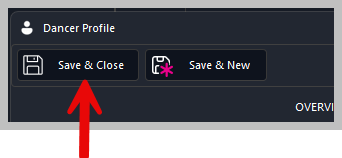
  1. Press Save and Close

  2. The dancer will appear in your main dancer list

  3. They are now ready for:

    • Check‑in

    • Scheduling

    • Booth assignment

    • Music setup

    • Reporting

🎉 Completion

Your new dancer is now fully set up in BoothPoint.


If you want, I can now create matching help‑manual pages for:


  • Contracts

  • Scanned ID

  • Schedule

  • CoverJock Music

  • Staff / Products / Members


Â