🧭 Overview
The Door Entry system in BoothPoint manages all admission costs and reception‑related duties. It provides a streamlined way to record entries, refusals, and incidents directly from the front desk, while all administrative reporting is handled in the back office.

BoothPoint’s dedicated door entry system allows reception staff to:
-
Process club‑to‑club entries
-
Handle group entries
-
Record computerized refusals and incident reports
-
Manage site visits and guest lists
-
Issue free passes or half‑price entries
All transactions are logged automatically and can be reviewed later through the back‑office reporting tools.
Adding a Door Entry to the Bill
-
Select the Door Entry tab from the top navigation bar.
-
Tap or click the desired door entry product (e.g., Full Entry, Half Price Entry, Free Entry).
-
If multiple entries are required, tap or click the same product again to increase the quantity rather than adding separate line items.
-
Review the bill summary on the right‑hand panel to confirm the total amount due.
-
Choose a payment method:
-
Cash
-
Credit Card
-
Funny Money
-
Club Credit Card
-
Press Pay Now or Pay Later to complete or defer the transaction.
Tips
-
Use the Guest List button to manage pre‑booked customers or VIPs.
-
The Add Refusal Entry option records any denied entry along with incident details for compliance and reporting.
-
The Taxi Payouts and Split Taxi buttons allow quick handling of transport‑related reimbursements.
-
Always verify the Terminal ID and Logged‑in user displayed at the top of the screen before processing entries.
Best Practices
-
Perform an X‑Read at intervals to review door entry totals without closing the session.
-
Use a Z‑Read at the end of the shift to finalize all entries and generate a complete report.
-
Ensure all refusals and incidents are logged before session closure for accurate audit tracking.
|

|
Tip
If more than one product is required, tap or click the product again increases the quantity rather that adding another item in the bill.
|
➕ Add Guest Pass
The + ADD GUEST PASS button opens the Add Guest Pass form, allowing staff to create a new pass.
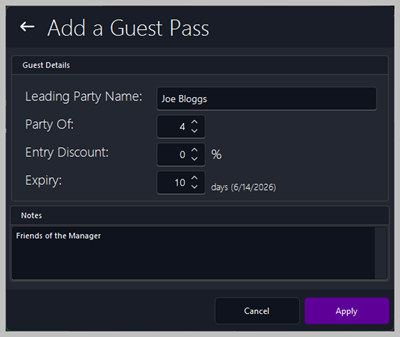
📝 Add Guest Pass Form
Guest Details
Leading Party Name
Name of the main guest or group leader.
Party Of
Number of people included in the guest pass.
Entry Discount
Percentage discount applied to the group’s entry fee.
Expiry
How long the pass remains valid. The system automatically displays the calculated expiry date.
Notes
Optional free‑text field for additional instructions or comments.
Form Actions
Apply
Creates the guest pass and adds it to the Active Guest Items list.
Cancel
Closes the form without saving.
|