Managing Tips
|
BoothPoint allows tips to be added directly from the POS during a sale. Tips can be applied to dancers or staff, either as a fixed amount or a percentage of the total bill. This ensures accurate tracking of gratuities and transparent payout reporting.
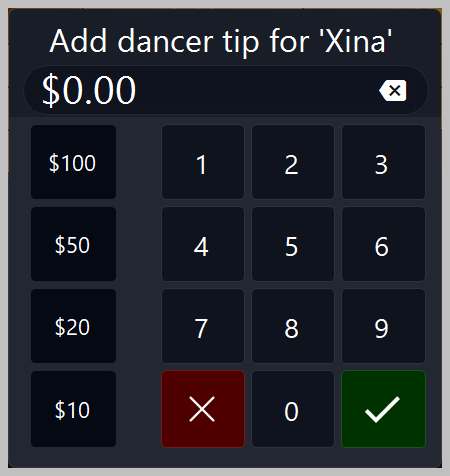
🧾 Adding Tips from the POSDuring a transaction, tap or click the three‑dot menu in the top‑right corner of the POS screen to access tip options. 1️⃣ Add Dancer Tip ($)
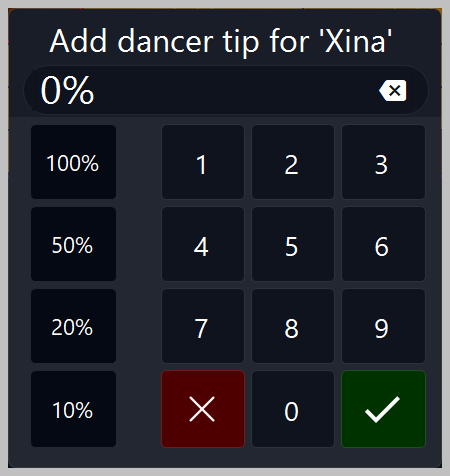
2️⃣ Add Dancer Tip (%)
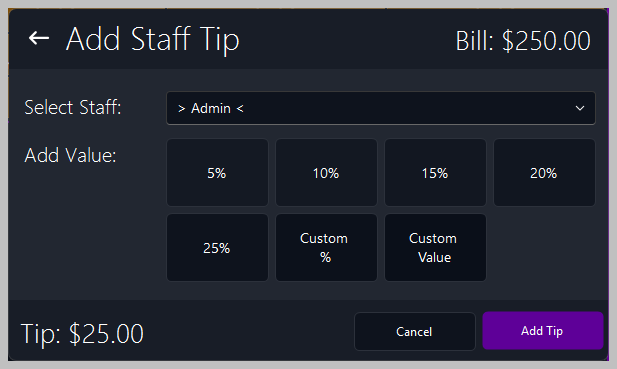
3️⃣ Add Staff Tip
💳 Automatic Mandatory GratuityBoothPoint can automatically apply a gratuity percentage to qualifying transactions. This percentage is configured in Options → Club Settings and added to the bill automatically when applicable. 🖨️ Tip Entry Receipt (Credit Card Payments)When paying by credit card, BoothPoint displays a Tip Entry Receipt for printing. The receipt includes:
The customer enters the tip amount, final total, and signs the receipt. After printing, the same Add Staff Tip screen appears for the operator to enter the tip value into BoothPoint, ensuring the tip is recorded and ready for payout.
|