|
BoothPoint integrates directly with Dejavoo payment terminals for secure card transactions.
This section explains how to process credit or debit card payments and configure terminal settings.
|

|
Tip
|
|
|
Tip
Locating the TPN and AuthKey can be found in the Dejavoo portal: https://www.ipospays.tech
-
You can not use the tipping features in the Dejavoo terminals. Tips must be issued through BoothPoint
- S.T.E.A.M > Edit Parameters > Select Device > TPN
- S.T.E.A.M > Edit Parameters > Select Device > Edit Parameters > Integration > AuthKey
|
🧾 Processing a Payment
Step 1 — Select Card Type
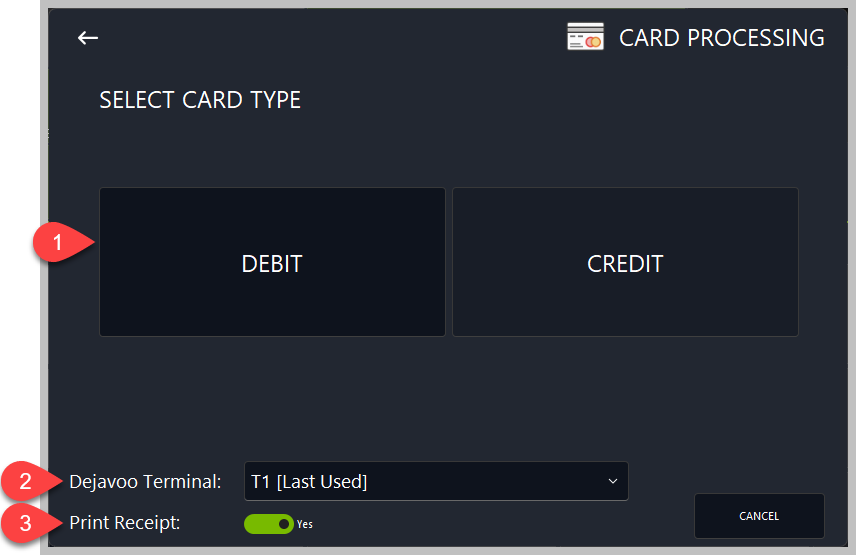
1. When initiating a card transaction, the Card Processing window appears. Choose the appropriate card type:
You can also confirm:
-
2. Terminal: e.g., T1 [Last Used]
Note: Defaults to last used on the POS terminal
-
3. Print Receipt: toggle as required
-
Click DEBIT or CrEDIT to proceed.
Step 2 — Wait for Payment
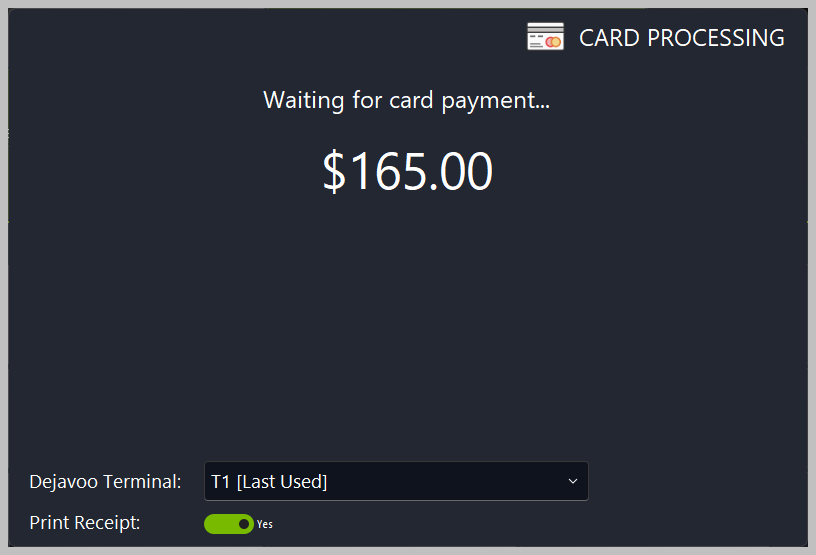
The system displays the amount due and waits for the terminal to respond. Example:
“Waiting for card payment… $165.00”
The terminal will automatically prompt for card input.
Step 3 — Customer Interaction
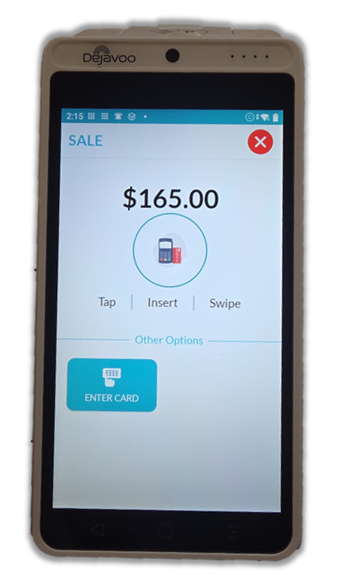
On the Dejavoo terminal screen, the customer can:
Once the transaction is approved, BoothPoint receives confirmation and updates the sale automatically.
Step 4 — Receipt Handling
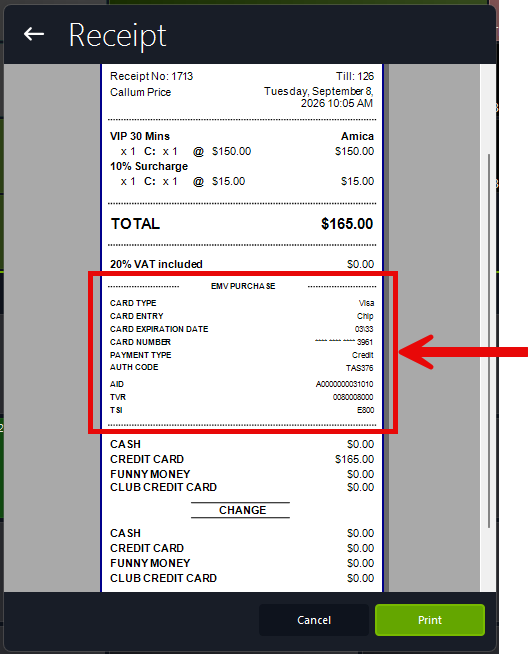
If Print Receipt is set to Yes, BoothPoint prints the receipt immediately after approval. If No, the transaction completes silently.
|
|
Troubleshooting
-
If the terminal shows “Keys not injected”, contact your payment processor to perform a key injection.
-
Ensure the terminal is online and paired correctly with BoothPoint.
-
Check that the Dejavoo Terminal ID matches the configured device in BoothPoint.
|
|
|
Tip
-
Always verify the terminal connection before opening the POS screen.
-
Use the Last Used terminal option for faster operation.
-
Keep firmware and BoothPoint integration settings up to date.
|
|