Receipt Print

đź§­ Overview

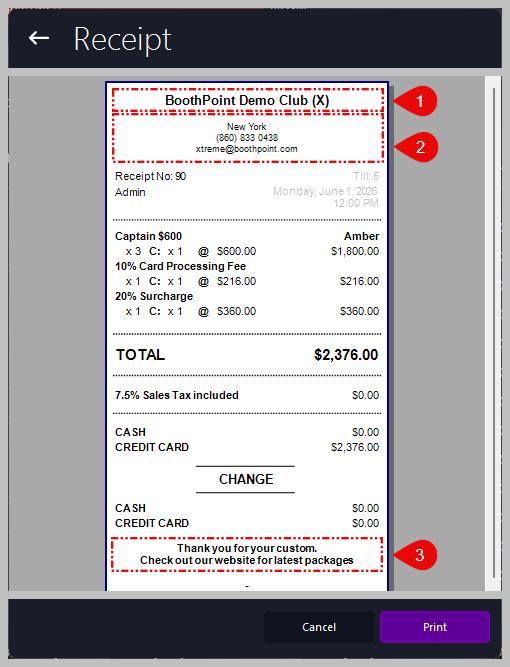
The Receipt Screen displays a preview of the customer’s receipt before printing or emailing. It is accessed from Options > Devices > Other Devices > Receipts. This screen allows full customization of the header and footer text shown on printed receipts.


The Receipt Screen displays a preview of the customer’s receipt before printing or emailing. It is accessed from Options > Devices > Other Devices > Receipts. This screen allows full customization of the header and footer text shown on printed receipts.

đź“‹ Customizable Fields

There are three editable areas on the receipt layout:

  1. 🏷️ Header Line 1

    • Typically used for the venue name or trading title.

    • Example: BoothPoint Demo Club (X)

    • Appears in bold at the top of the receipt.

  2. 📍 Header Line 2

    • Used for address, contact number, or email.

    • Supports multiple lines for location and contact details.

  3. 💬 Footer Message

    • Printed at the bottom of the receipt.

    • Commonly used for thank‑you notes, promotions, or website links.

    • Example: Thank you for your custom. Check out our website for latest packages.

🖨️ Printing and Actions

At the bottom of the screen:

  • Cancel – closes the preview without printing.

  • Print – sends the receipt to the configured printer.

⚙️ Configuration Path

To edit these fields:

Options > Devices > Other Devices > Receipts

Each field can be updated directly in the configuration panel. Changes apply immediately to all future printed receipts.


Tips

  • Keep header text short for best alignment on narrow receipt printers.

  • Use the footer for marketing messages or loyalty reminders.

  • Test print after editing to confirm layout and spacing.


Â