Reports Overview

The Reports section in BoothPoint provides detailed insights into club operations, sales, and performance. It allows managers to generate, view, and share reports for dancers, staff, terminals, and products — all from one centralized location.


Tips

Click here for a list of the full report library: Report Library


Tip

Misc product type consists of:

  • Cash Discount Surcharge
  • Exchange Funny Money for Cash
  • Late House Fee Fine
  • House Fee Fine Not Paid
  • Worked Under X Hours Fine
  • No Show Fine
  • Manager Commission Payout (%)
  • No Sales
  • Other Outgoing (Custom)
  • Additional Percent to bill

To view a list of all Misc products sold, run the report Sales By Product Type


🗔 Main Layout

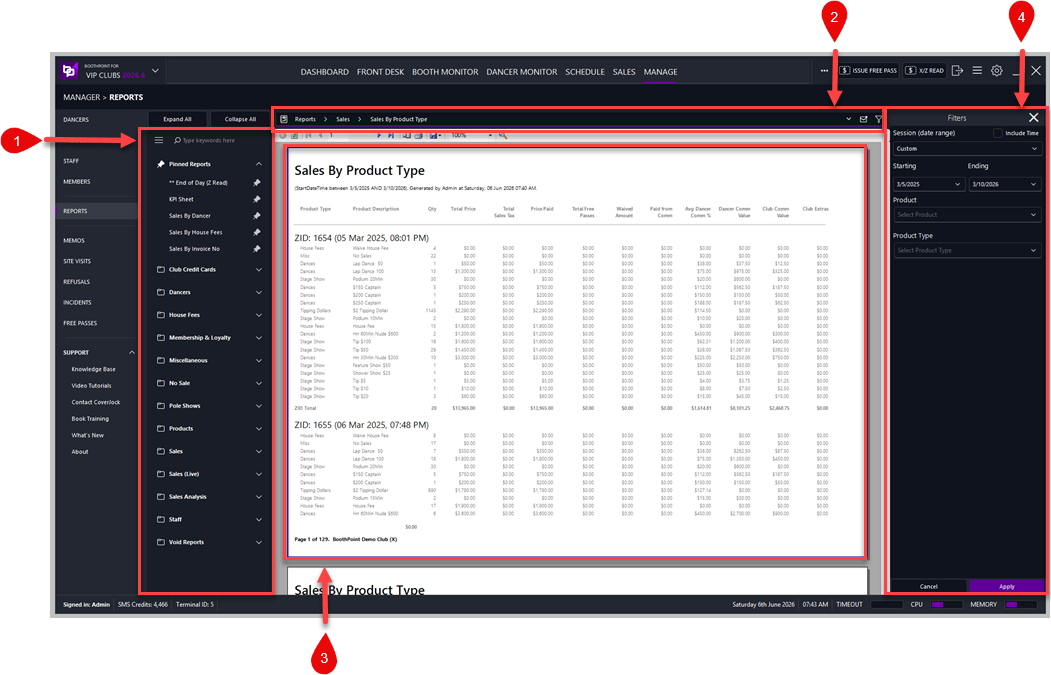
The Reports screen is divided into four key areas:


  1. Navigation Sidebar

  2. Report Viewer

  3. Top Toolbar (Search, Filter, and Email Controls)

  4. Filter Panel

📚 1. Navigation Sidebar

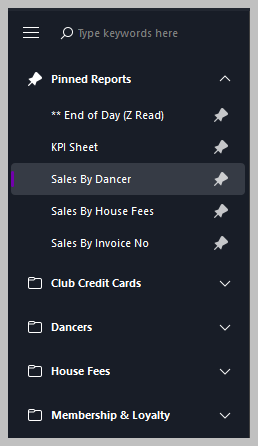
Located on the left side of the screen, the sidebar organizes all available reports into categories for quick access.


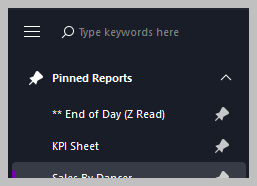
Pinned Reports


Pinned reports appear at the top of the list with a pin icon 📌. These are frequently used reports that remain easily accessible regardless of category. To pin or unpin a report:


  1. Hover over the report name.

  2. Click the pin icon 📌 to toggle its status. Pinned reports are ideal for daily or weekly operational summaries such as:

  • End of Day (Z‑Read)

  • KPI Sheet

  • Sales by Dancer

  • Sales by Product Type

📊 2. Report Viewer


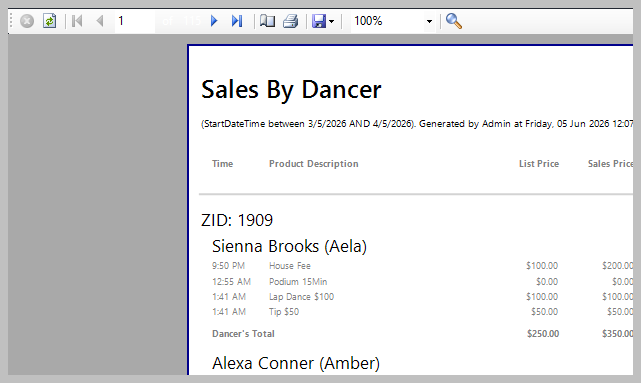
The central area displays the selected report in full detail. Reports can include columns for:


  • Time

  • Product Description

  • List Price / Sales Price

  • Quantity (Qty)

  • Total Price

  • Waived Amount

  • Paid from Commission

  • Average Dancer Commission %

  • Dancer Commission Value

  • Club Commission Value


Each report is automatically generated with a header showing:


  • Report Title

  • Date Range

  • Generated By (user name and timestamp)


Example: Sales By Dancer (StartDateTime between 6/3/2025 and 6/4/2025, Generated by Admin at Wednesday, June 9, 2026, 03:47 PM).

🛠️ 3. Top Toolbar


Located at the top right of the Reports screen, the toolbar provides tools for searching, filtering, and emailing reports.


Search


Use the search bar to quickly locate reports by keyword. Type part of a report name (e.g., “Sales,” “Dancer,” or “Z‑Read”) to instantly narrow results.


Filter


The filter icon opens the Filter Panel (see below) for refining report data by date range, dancer, or product type.


Email


The email icon enables direct sharing of reports from BoothPoint. Click the icon to open the email dialog, then:


  1. Enter recipient addresses.

  2. Add optional notes.

  3. Send the report as an attachment or embedded summary.


This feature is ideal for sending daily summaries to management or accounting teams.


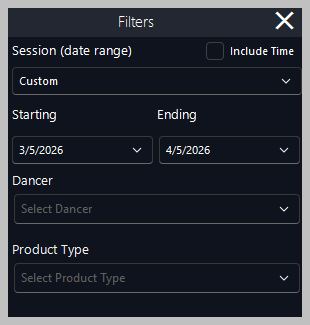
🔍 4. Filter Panel


Located on the right side of the screen, the Filter Panel allows precise control over report data before generating or exporting.


Sample Filter Options


  • Session (Date Range)

    • Choose a preset range or select Custom to define specific start and end dates.

    • Enable Include Time to refine results by exact timestamps.

  • Dancer

    • Select a specific dancer to view individual sales performance.

  • Product Type

    • Filter results by product category (e.g., drinks, dances, house fees).


Controls


  • Apply – Generates the report using the selected filters.

  • Cancel – Closes the filter panel without applying changes.


Filters can be combined to produce highly targeted reports — for example, viewing Sales by Dancer for a specific performer between two dates.

🧩 Additional Controls

At the top of the report viewer, you’ll find standard viewing tools:


  • Expand / Collapse All – Shows or hides report categories.

  • Zoom Controls (100%) – Adjusts report display size.

  • Page Navigation – Moves between multi‑page reports.

  • Export / Print Icons – Allows printing or exporting reports (if enabled).

⭐ Best Practices

  • Pin frequently used reports for faster access.

  • Always apply filters before emailing to ensure recipients receive relevant data.

  • Use the Sales by Dancer and Sales by Booths reports for weekly performance reviews.

  • Verify date ranges before exporting or printing reports.

  • Refresh the Reports section after major sales or check‑outs to ensure data accuracy.